
Overview
Category Queue has been upgraded to give teams full control over their queues without needing to rebuild them from scratch. You can now edit, reorder, reschedule, and visualize queues with ease, making content scheduling far more flexible for teams managing multiple brands, seasonal campaigns, or frequently changing timelines.
Edit Category Queue
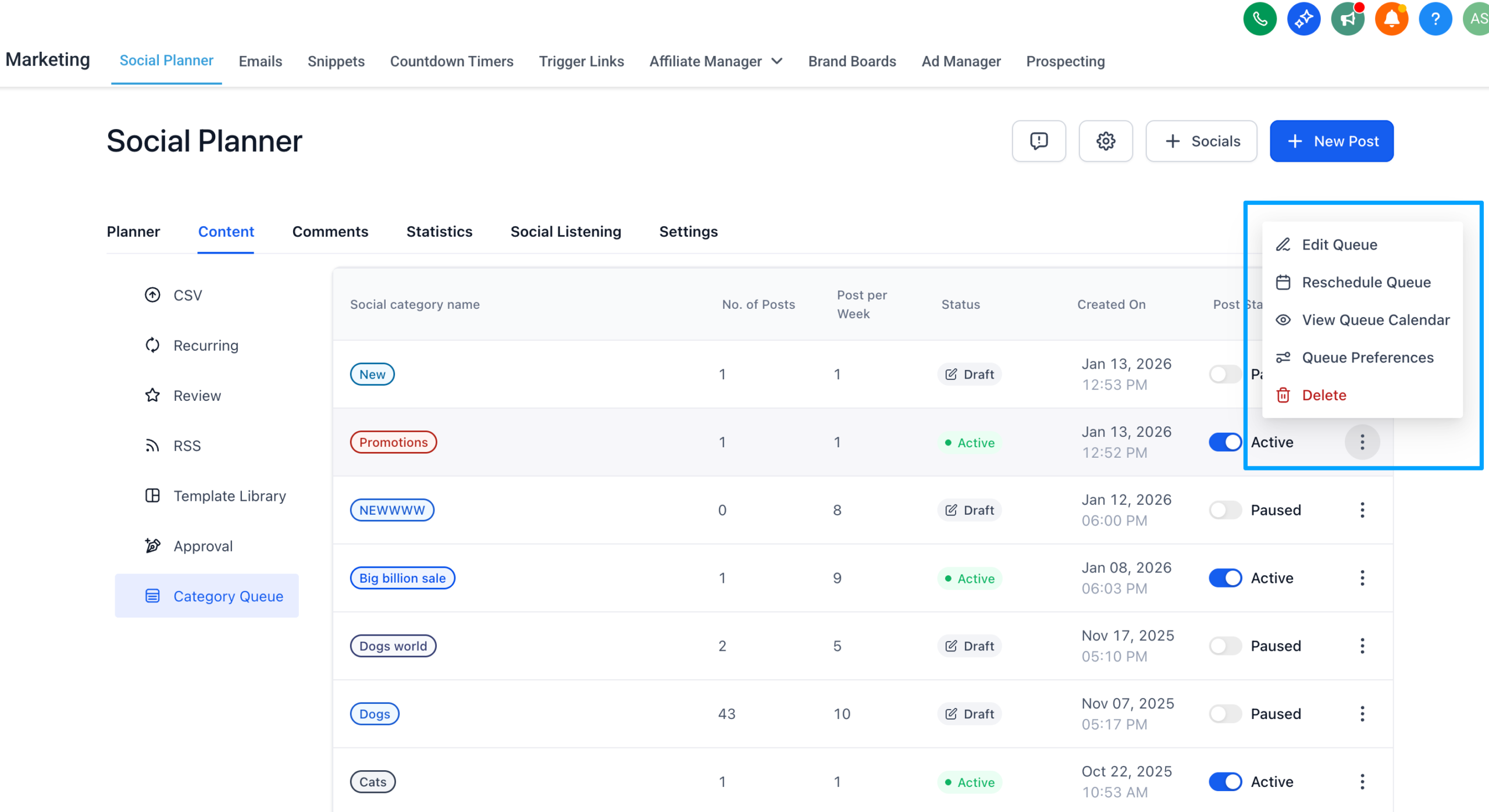
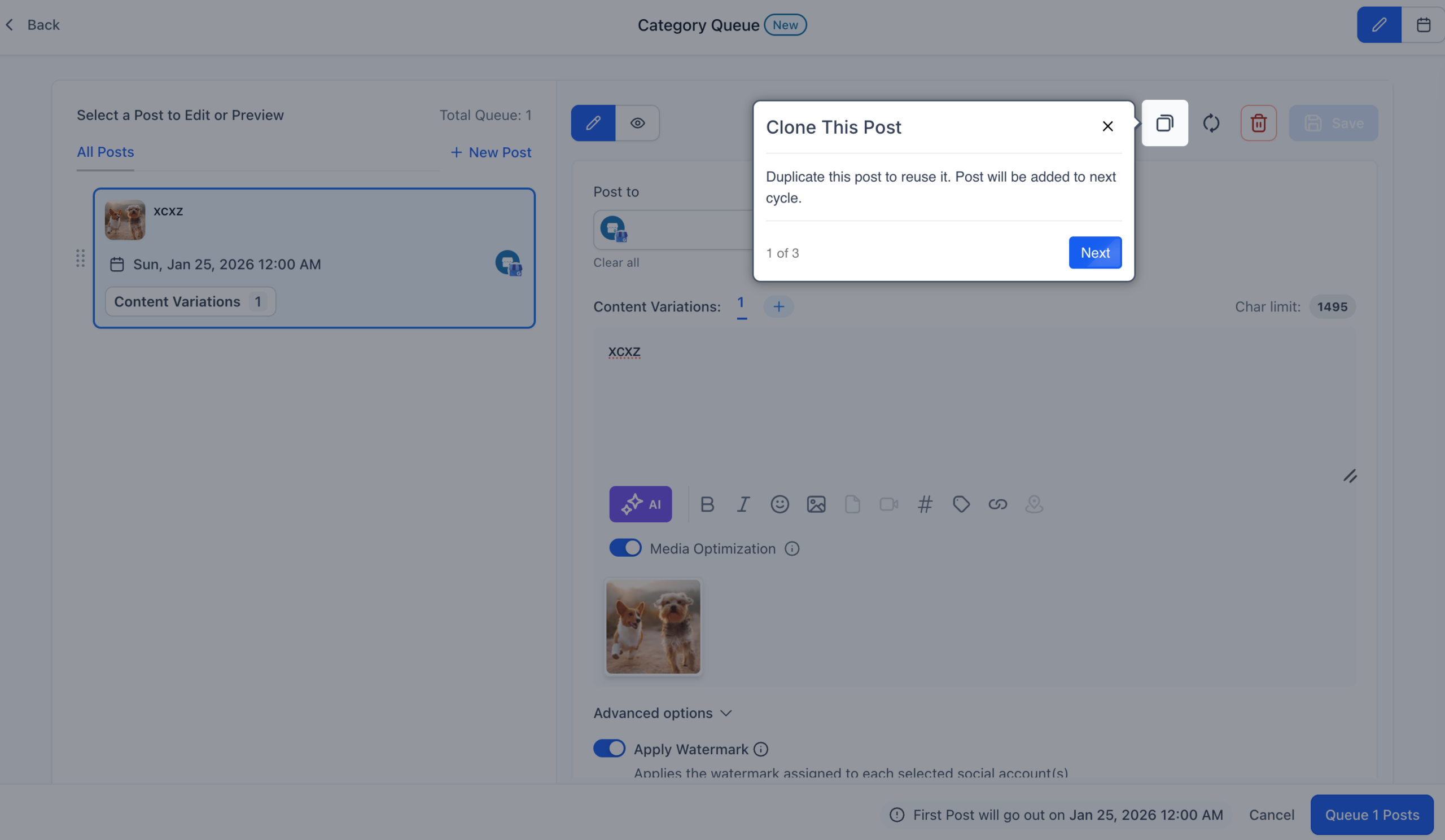
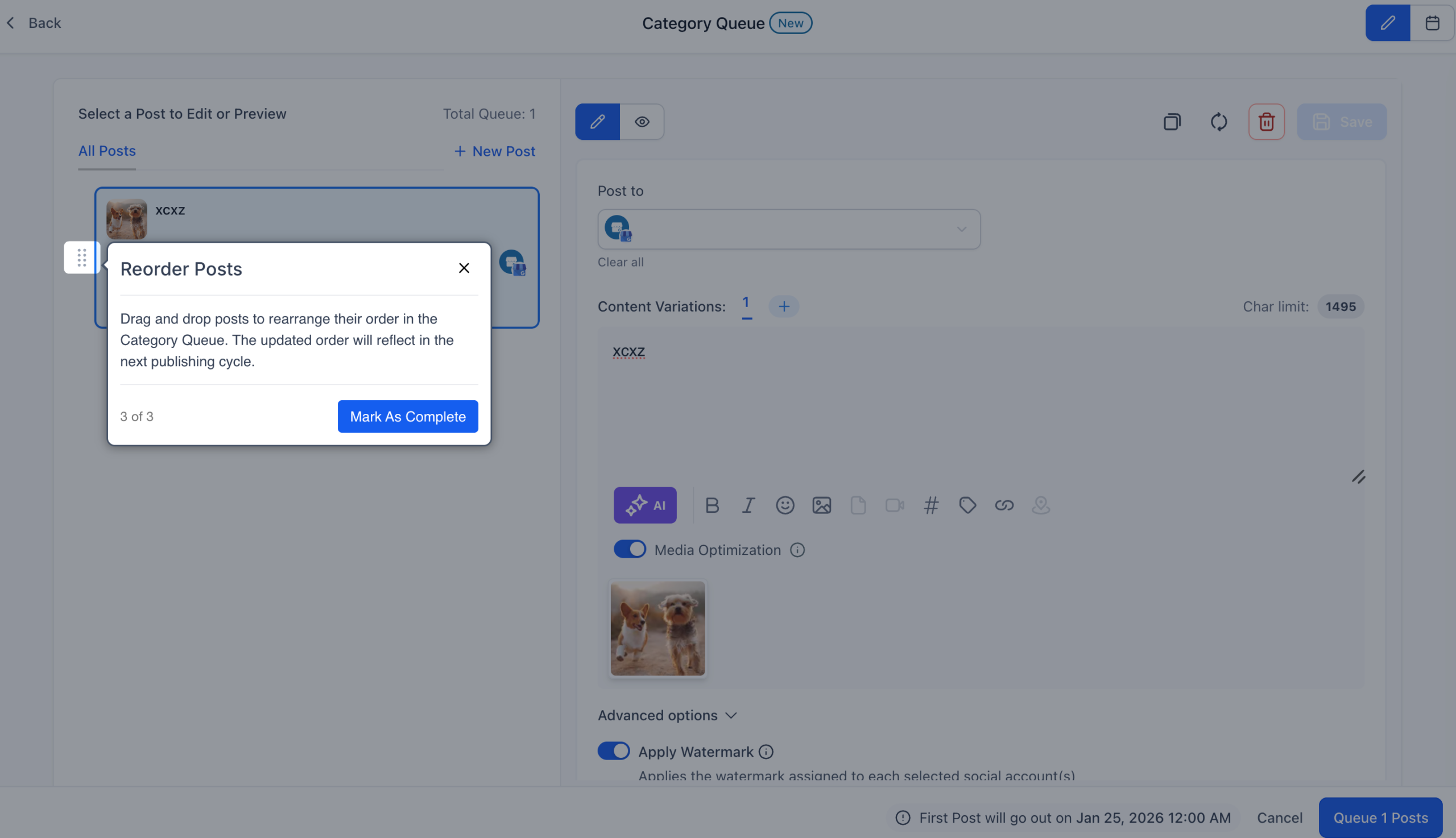
Category Queue is now fully editable, allowing you to adjust key details directly within an existing queue. You can update post captions and related sub-fields, change posting frequency, modify queue timeslots, and reorder posts using simple drag-and-drop controls. This makes it easy to refine your queue as plans change without disrupting your overall schedule. Single post rescheduling is not supported, ensuring queue logic stays intact.
Calendar View for Queues
A new visual calendar view makes it easier to understand your content schedule at a glance. You can switch between weekly and monthly views to see exactly how posts from your Category Queue are distributed over time. This view helps teams plan ahead, spot gaps, and adjust timing more confidently within the social planner.


Reschedule Entire Queue
You can now shift an entire Category Queue to start on a new date in just a few steps. Select a new start date using a date picker modal, allow the system to automatically reassign posts based on your existing frequency rules, and confirm the changes before they are applied. This ensures smooth transitions when campaign timelines shift.
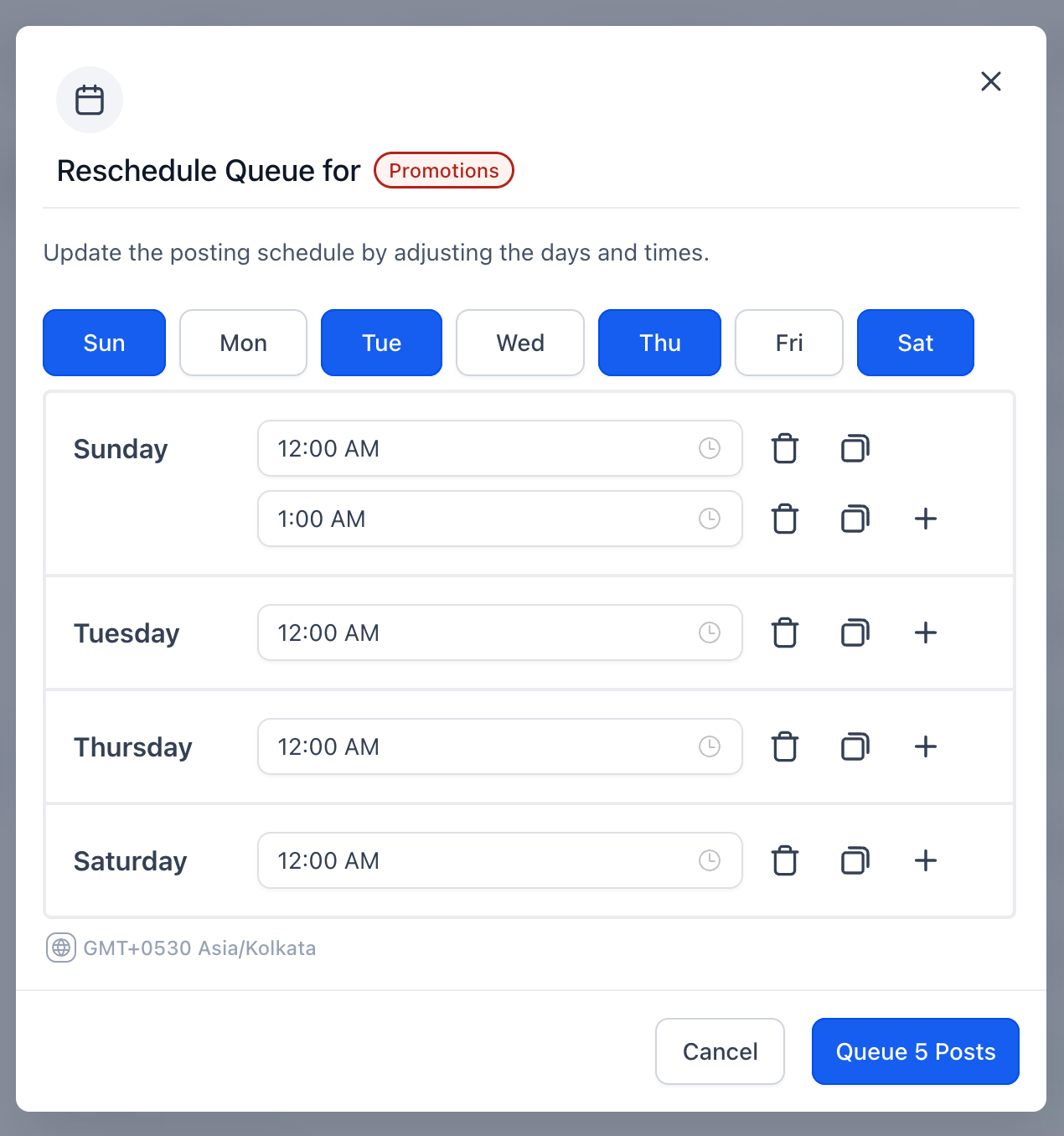
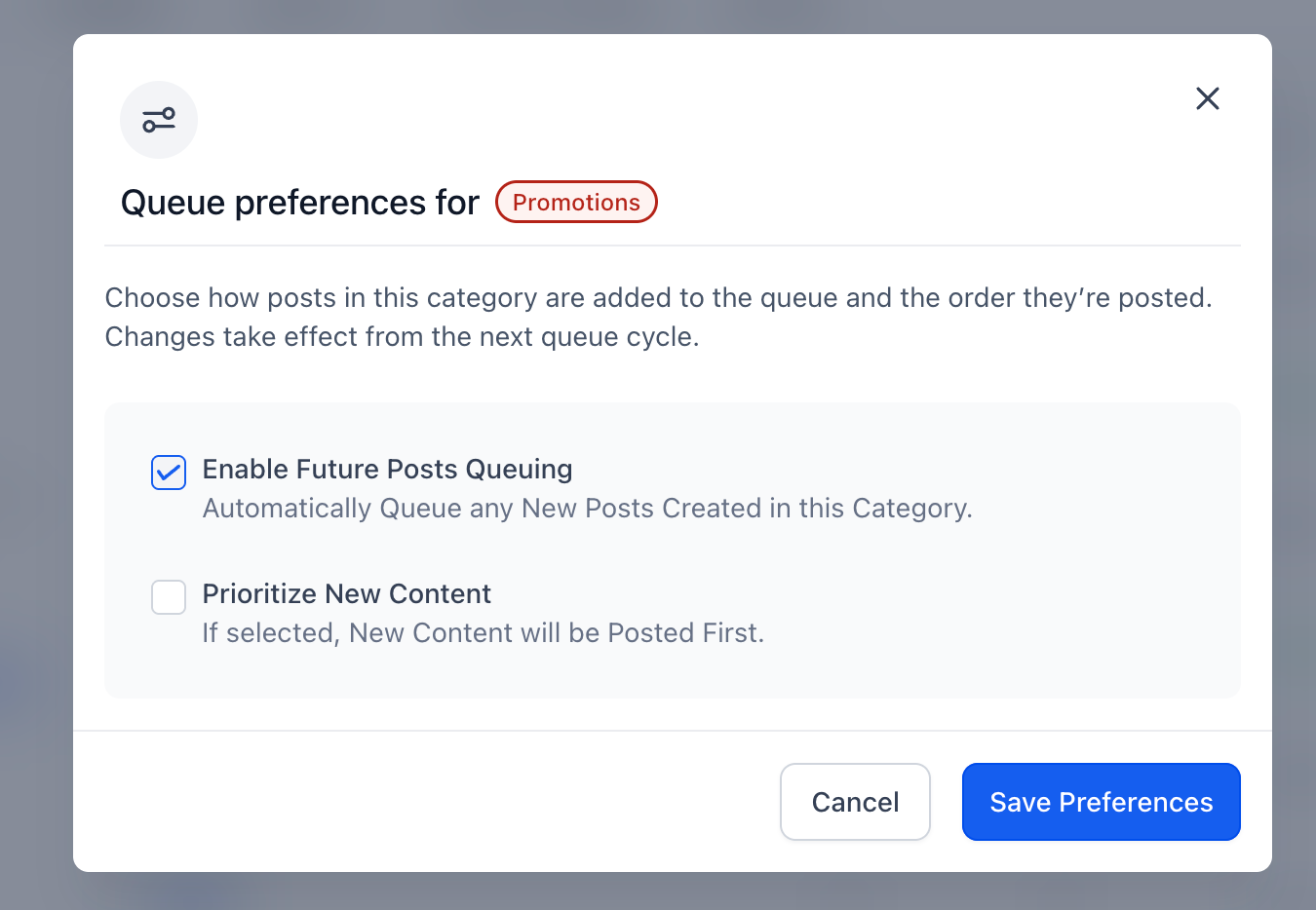
Queue Preference: Control New Post Placement
New queue preferences give you control over how new posts are added to a Category Queue. You can choose to prioritize new content by placing it at the top of the queue or allow posts to be added to the end following the existing schedule. When Enable Future Queuing is turned on, new posts created within a category are automatically added to the appropriate queue.
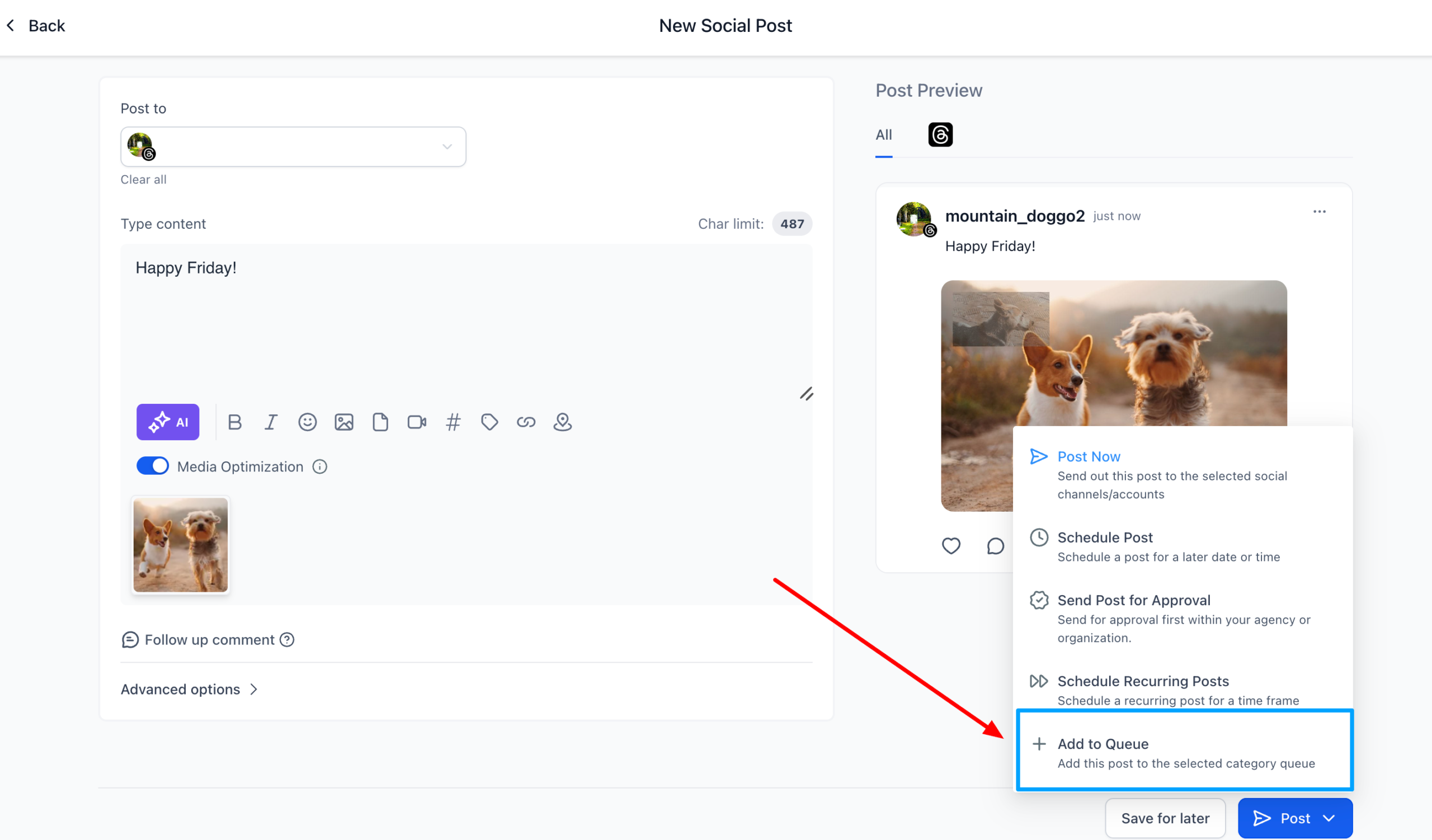
Add to Queue From Post Composer
Posts can now be added to a Category Queue directly from the Post Composer. Select an existing category to append the post to its queue, or create a new category to automatically generate a new queue. This streamlines content scheduling and reduces extra steps during post creation.
Why This Matters
These Category Queue enhancements save time that was previously spent recreating queues and make it easier to respond to shifting campaign timelines. Teams gain better long-term control over content scheduling, clearer planning through calendar visualization, and reduced friction for agencies and multi-brand workflows.
How It Works
Navigate to Marketing → Social Planner → Category Queue. Hover over a queue and open the three-dot menu to access options such as Edit Category Queue, View Queue Calendar, Reschedule Queue, or Queue Preference. Make your changes and save. Updates apply instantly across the social planner.