
Overview
Configuring CTAs on quiz results is now quicker and more intuitive. The CTA section on the quiz results page has been enhanced to simplify setup, especially for quizzes that use multiple tiers like low, medium, and high. These improvements reduce repetitive work while delivering a cleaner experience for quiz takers.
What’s New
The updated CTA setup introduces smarter defaults and flexible display behavior across quiz results.
Default Values by Tier
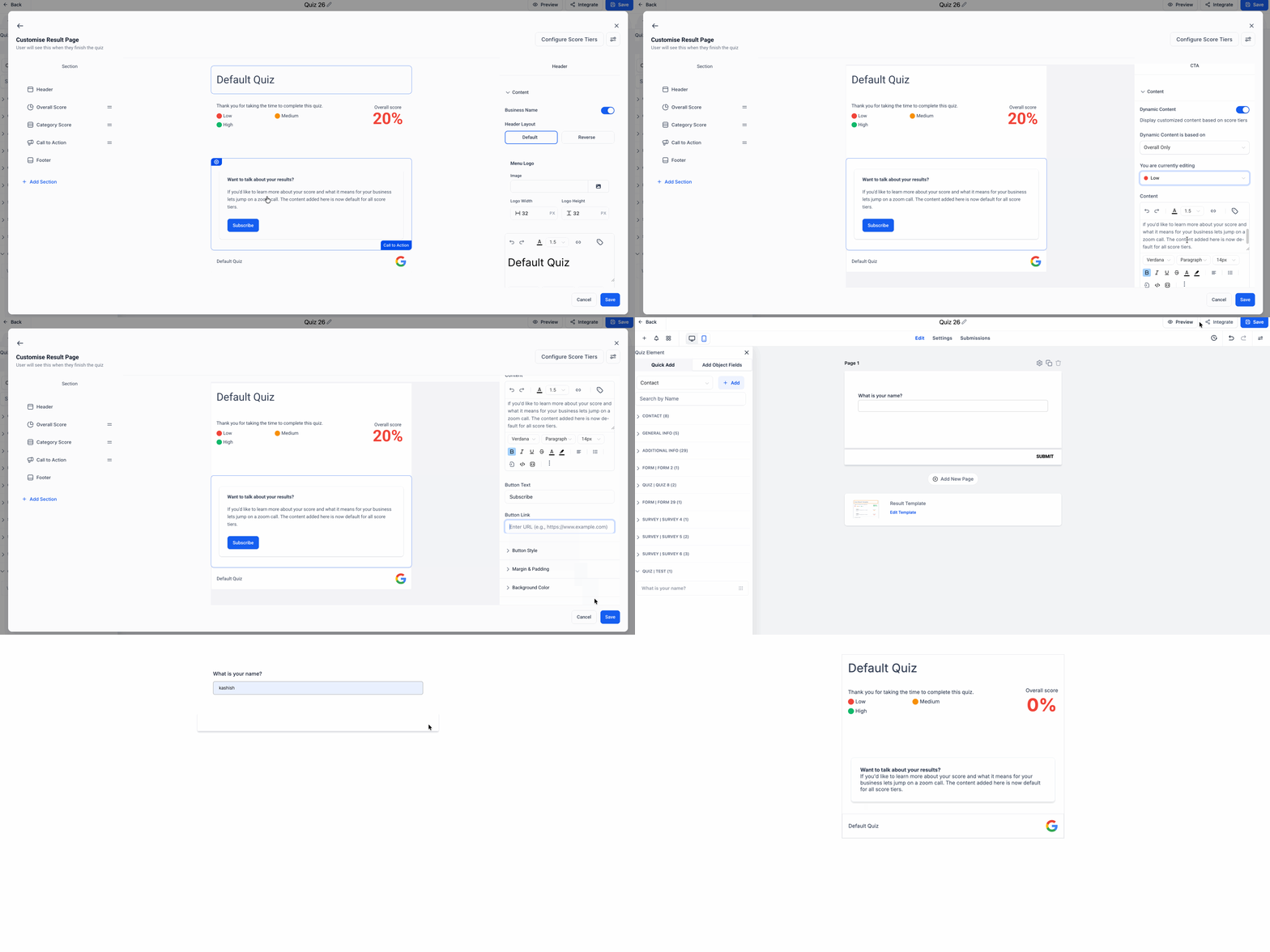
When you configure the quiz CTA for the first tier in a category, the section content, CTA name, and CTA link automatically carry over to the remaining tiers. This makes CTA setup faster and keeps quiz results consistent without repeated manual entry.
Smarter Display Logic
If a CTA name or CTA link is left empty for a specific tier, the CTA button is automatically hidden. Only the related content is shown, allowing quiz results to stay clean when a CTA isn’t needed.
New and Existing Quizzes
All new quizzes use this quiz CTA behavior by default. For existing quizzes, the updates apply once the quiz is opened and re-saved in the builder, ensuring CTA setup changes are intentional.
How It Works
In the quiz builder, start by setting up the quiz CTA for the first tier. The CTA setup automatically populates the remaining tiers within the same category. If you clear the CTA name or link for any tier, the button is removed for that tier’s quiz results. Re-saving older quizzes activates these enhancements.
Notes
These updates are designed to reduce setup friction and give creators more control over quiz CTA visibility. With faster CTA setup and cleaner quiz results, building polished, high-performing quizzes is easier than ever.